Appearance
Action Tile Templates
Templates are reusable Action Tile configurations. Instead of setting up the same Action Tile from scratch every time, you can save a configuration as a template and apply it across multiple experiences.
Why Use Templates
- Consistency — Keep Action Tile configurations identical across experiences (same labels, settings, and content).
- Speed — Create new Action Tiles in seconds by selecting a template instead of configuring each field manually.
- Reusability — Build a library of go-to Action Tile setups and starting points for common use cases.
TIP
Templates are perfect for Action Tiles that are consistently used in multiple mem-re Experiences, with minimal changes applied between them.
Browsing Templates
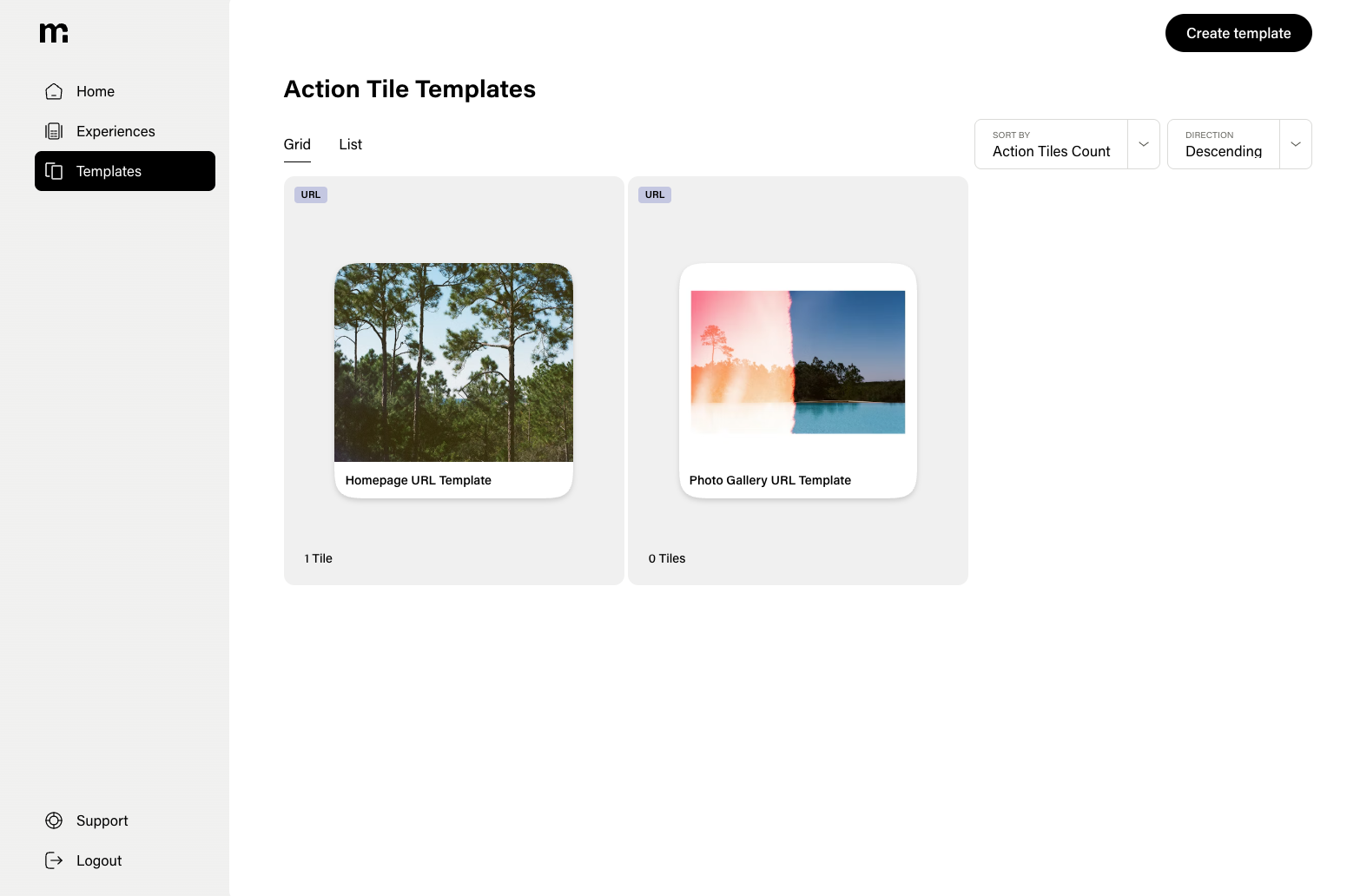
Navigate to Templates in the sidebar to see all of your saved templates. You can:
- Toggle views — Switch between grid and list layouts.
- Sort — Order templates by created date, last used date, or usage count (how many experiences use the template).
- Create — Start a new template from scratch.
Each template in the list shows its name, type, and how many times it has been used.
Creating a Template
There are two ways to create a template:
From Scratch
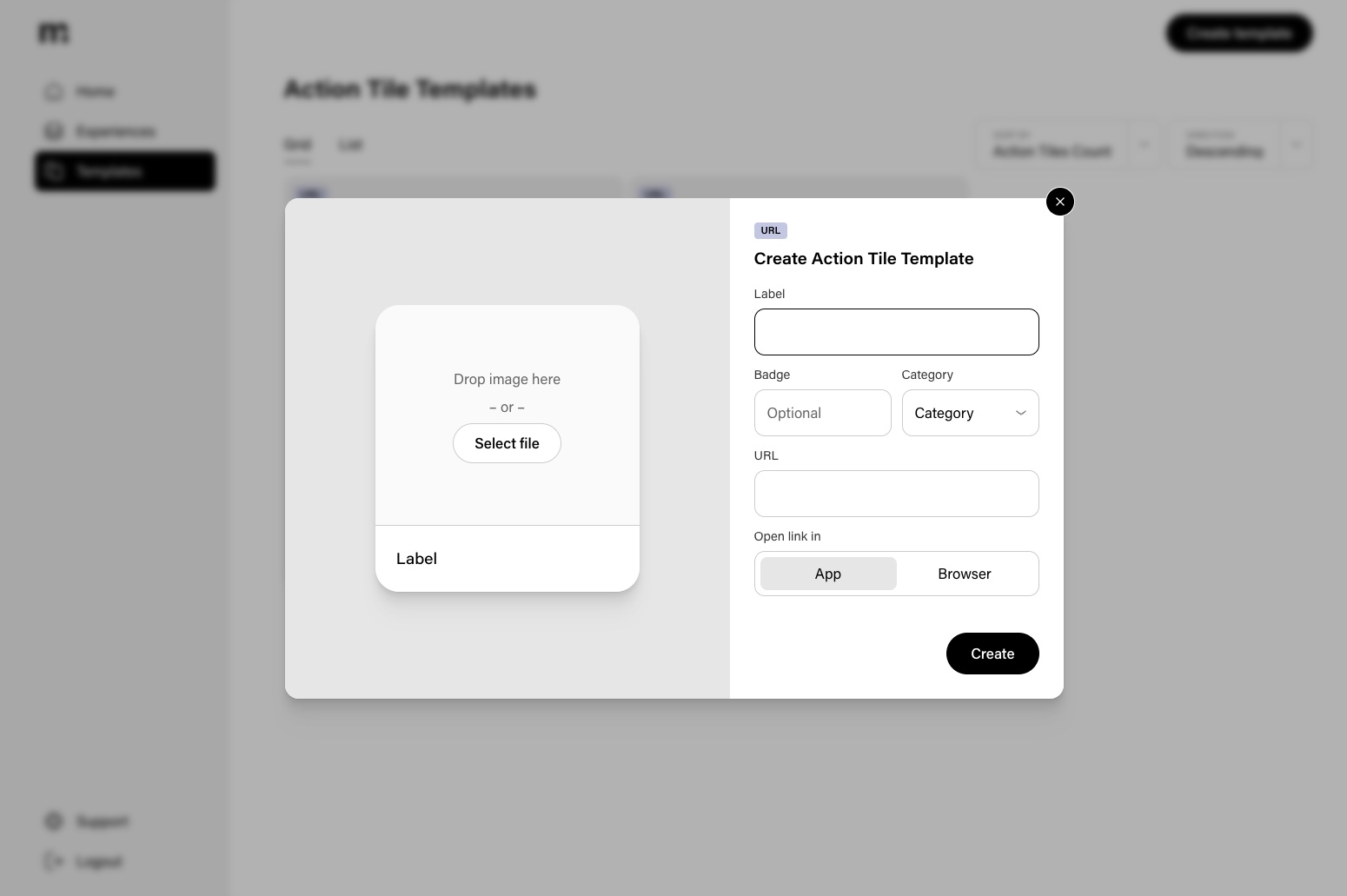
Navigate to the Templates page and click Create Template. Configure the Action Tile type, label, settings, and content just like you would for a regular Action Tile.
From an Existing Action Tile
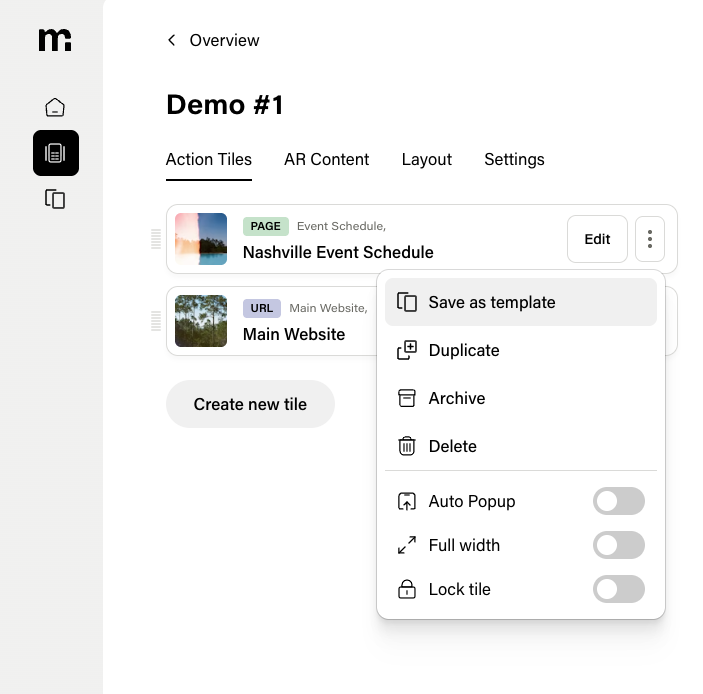
When editing an Experience, open the menu on any Action Tile and select Save as Template. The Action Tile's current configuration is saved as a new template that can be reused elsewhere.
You can also save an entire experience's Action Tile configuration as a template from the experience menu.
Using a Template
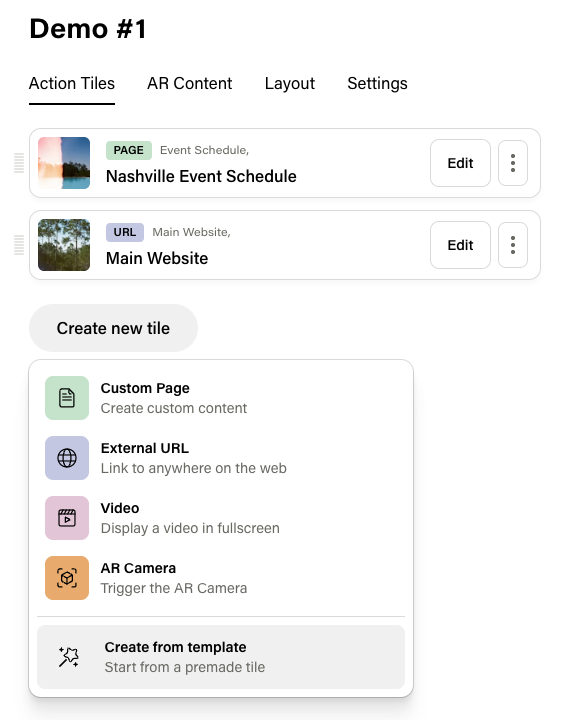
When adding a new Action Tile to an experience, choose Create from Template instead of creating from scratch. You will see a list of available templates that you can sort by:
- Created date
- Last used date
- Usage count
Select a template and the new Action Tile is pre-configured with all of the template's settings. You can then adjust any fields as needed for that specific experience.
Managing Templates
From the template menu you can:
- Delete — Permanently remove a template. This does not affect Action Tiles that were already created from it.