

Appearance
Action Tiles
Action Tiles are the interactive elements that make up an Experience. When a user scans a mem-re item, they see a list of Action Tiles they can tap to engage with content, watch videos, and more.
Creating Action Tiles
You can create a new Action Tile in two ways:
- From scratch — Choose an Action Tile type and configure it manually.
- From a template — Select an existing Action Tile template that you've pre-configured.
Action Tile Types
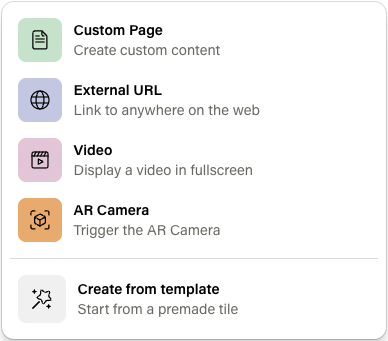
There are four types of Action Tiles, each serving a different purpose:
| Type | Description |
|---|---|
| URL | Links the user to an external website. You can configure whether the link opens within the app or in the device's browser. |
| Video | Displays an embedded video within the Experience. |
| Page | A custom rich content page. Pages can include text, images, and other media — useful for storytelling, product details, or branded content. |
| Camera (AR) | Launches the user's device camera to activate augmented reality experience. When a user taps this Action Tile, their device camera opens and the AR content you configured plays when the item is detected. See AR Content for setup details. |
Configuring an Action Tile
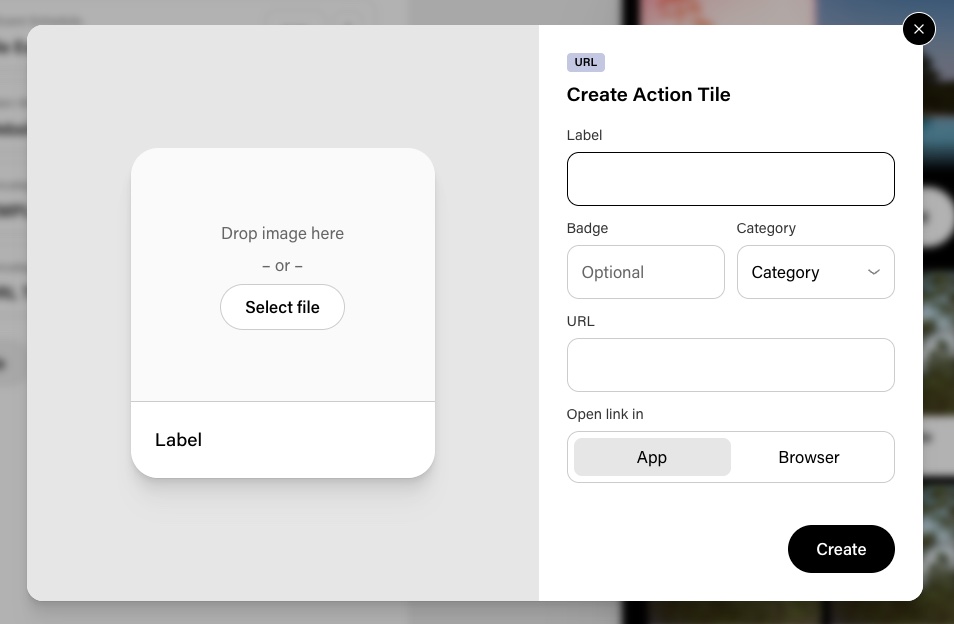
Each Action Tile has the following settings:
| Setting | Description |
|---|---|
| Label | The text displayed on the Action Tile. |
| Badge Label | An optional badge shown on the Action Tile (ex., "New", "Limited"). |
| Image | An optional image displayed on the Action Tile. |
| Category | An optional category for organizing Action Tiles, visible on the Home Dashboard's Action Tile Clicks Breakdown graph. |
Action Tile Actions
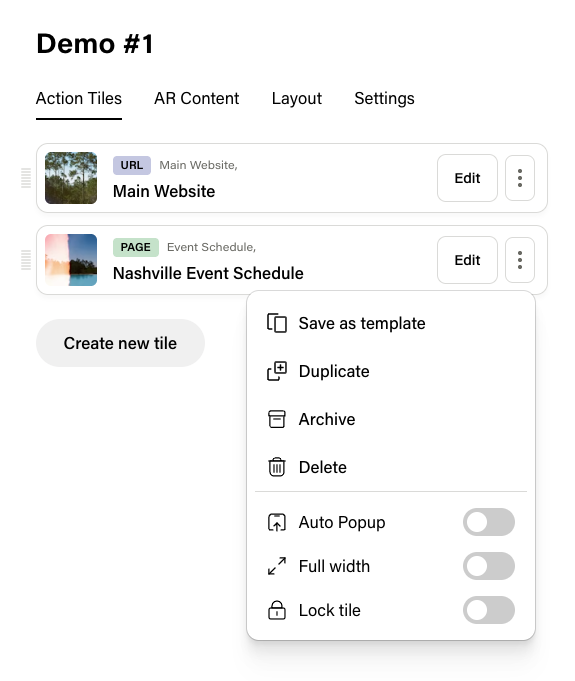
Click the Action Tile menu (button with 3 dots) to access:
| Option | Description |
|---|---|
| Save as Template | Save this Action Tile's configuration as a reusable template. |
| Duplicate | Create a copy of the Action Tile within the same Experience. |
| Archive / Unarchive | Toggle the Action Tile's archived status. |
| Delete | Permanently remove the Action Tile. |
Additional Options
| Option | Description |
|---|---|
| Auto Popup | The Action Tile is displayed as a popup overlay instead of in the main Action Tile list. Only one Action Tile can be the popup Action Tile per Experience. |
| Full Width | The Action Tile spans the full width of the Experience layout instead of the default size. |
| Lock tile | Require a user to sign up or register before seeing the content of the tile. |
Categories
Categories can be assigned to Action Tiles to group similar Tiles together across all Experiences. On the Home Dashboard, tiles that share the same Category are grouped together in the Action Tile Clicks Breakdown. This makes it easier to track engagement trends across multiple Experiences that use similar types of tiles.
Reordering Action Tiles
Action Tiles can be reordered using drag and drop. Grab the handle on a Action Tile and drag it to the desired position. The display order updates automatically.