
Appearance
AR Content
A mem-re Experience can include Augmented Reality (AR) content that plays when a user points their device camera at the physical item. This creates an immersive, interactive moment tied to the item.
How AR Works
When a user taps the AR camera Action Tile (or the AR button in the experience), their device camera opens. When the item is detected in the camera view, the configured AR videos play over the front and/or back of the item in real time.
Setting Up AR Content
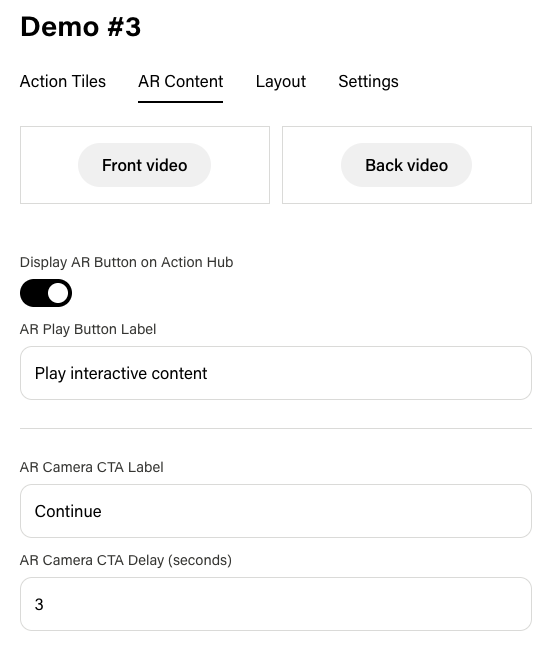
Navigate to the AR Content tab in the experience editor to configure:
Video Uploads
| Field | Description |
|---|---|
| Front Video | The AR video that plays over the front of the item. |
| Back Video | The AR video that plays over the back of the item. |
Upload progress is tracked in real time. Both fields are optional — you can configure AR for just one side of the item if needed.
AR Camera Settings
| Setting | Description |
|---|---|
| Display AR Button on Action Hub | Toggle whether the AR button appears in the Action Tile page of the experience. Tip: Turn this off if you only want AR accessible through the Camera Action Tile. |
| AR Play Button Label | The text on the AR button that's optionally displayed on the Action Tile page. (ex., "View AR"). |
| AR Camera CTA Label | The call-to-action text displayed to prompt users to open the AR camera (ex., "Scan your item"). |
| AR Camera CTA Delay | How many seconds to wait before showing the CTA. Useful for letting users explore the experience before prompting them. Tip: Use the CTA delay to control when users are prompted to click into the Action Tile page. This defaults to 3 seconds, but depending on the AR content, consider extending the delay time to maximize the engagement and viewing time from the audience. |