
Appearance
Managing Experiences
An Experience is the core building block of the mem-re platform. It ties together a physical item, a set of interactive Action Tiles, optional AR content, and a branded visual layout into a single experience viewed by your audience.
Navigating Through Experiences
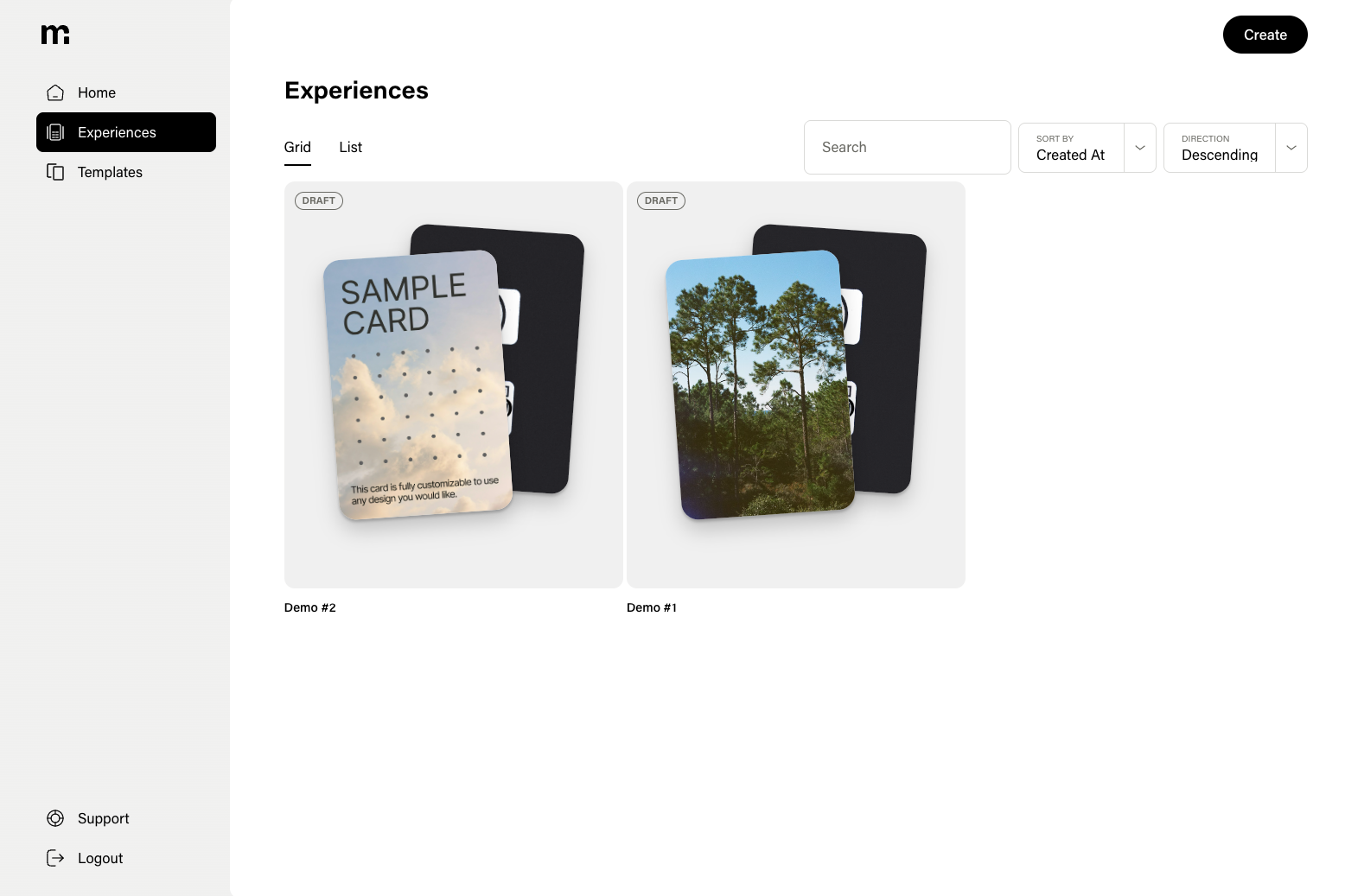
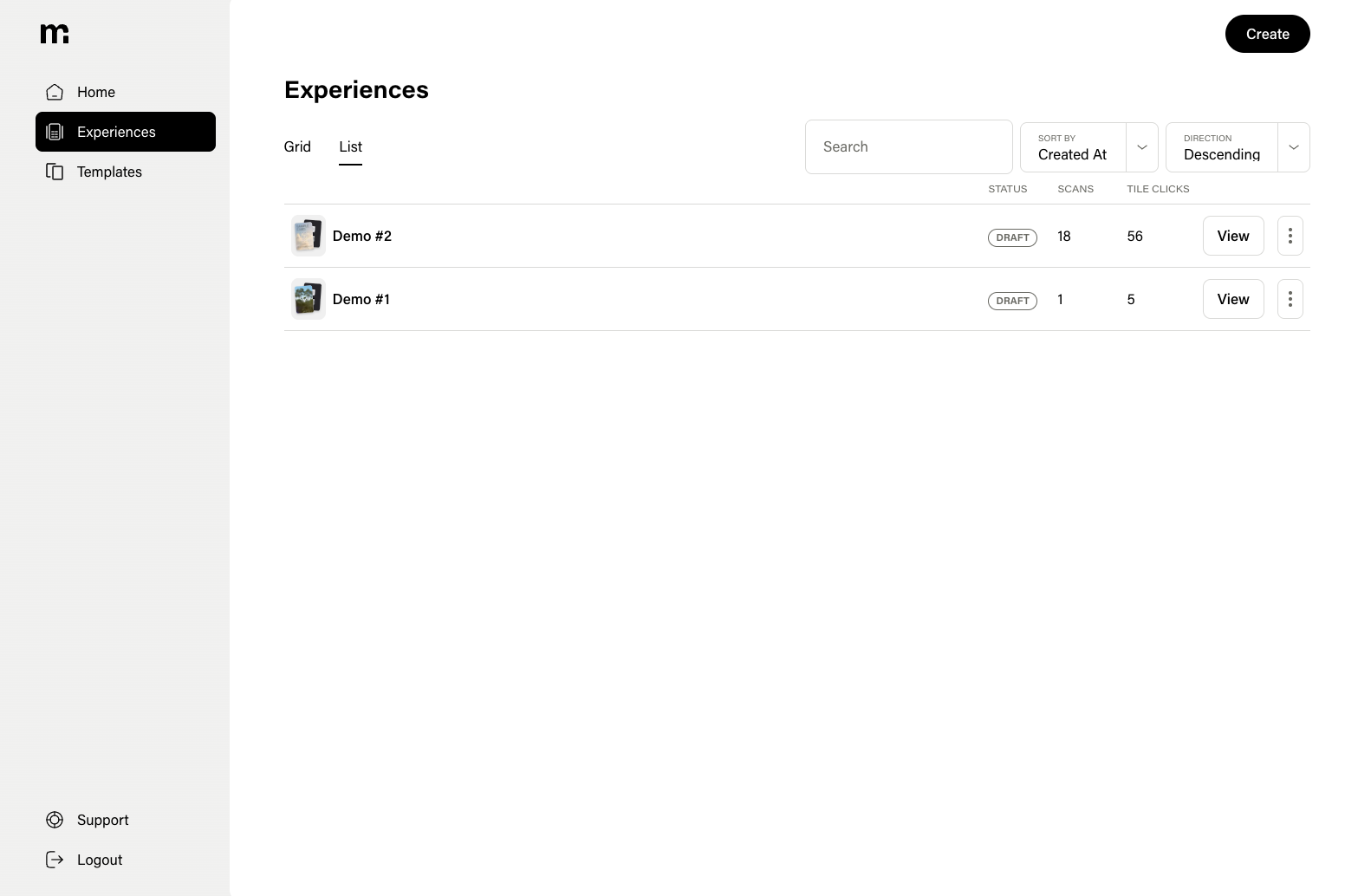
The Experiences page shows all of your Experiences. You can:
- Toggle views — Switch between grid and list layouts.
- Search — Filter by Experience name.
- Sort — Order by created date.
- Paginate — Navigate through large lists of Experiences.
Each Experience in the list shows:
- Name
- Item preview (front and back)
- Status (Live or Draft)
Experience Grid View
Experience List View
Individual Experience Overview
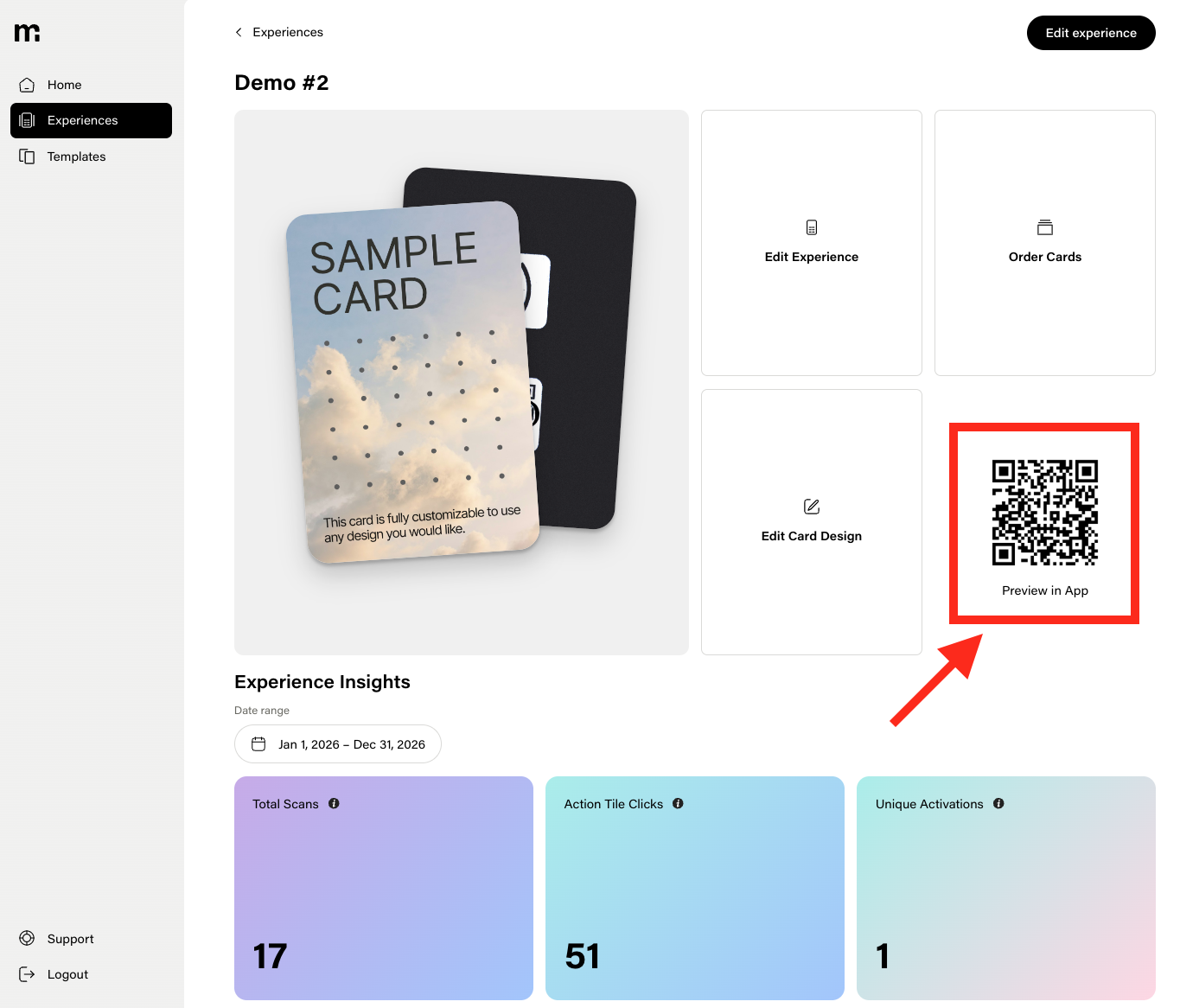
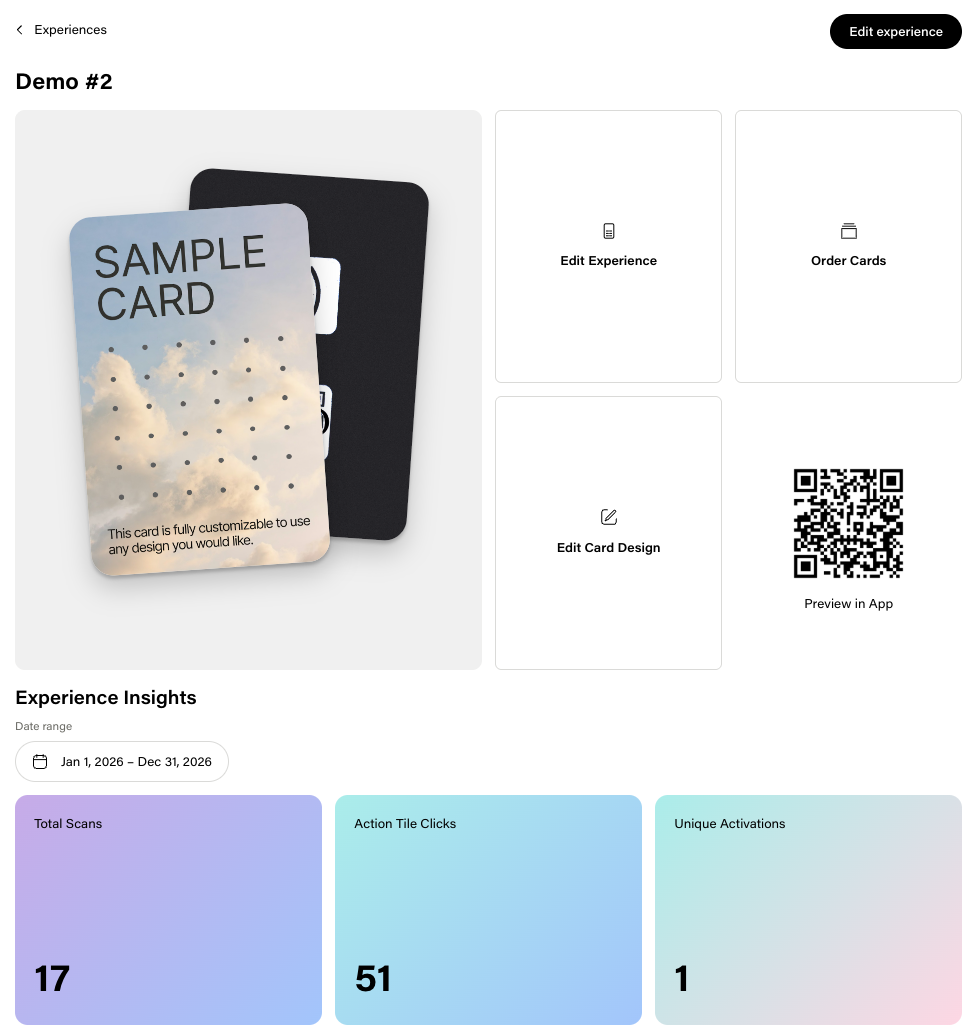
Click on any Experience to view its own individual Overview page. Here you will find:
- Item preview — Front and back designs at a glance.
- Experience-level analytics — Total Scans, Action Tile Clicks, and Unique Activations filtered by date range.
- Graphs — Activations over time and Action Tile click breakdowns.
From the overview you can:
- Edit the Experience — Jump into the Experience editor.
- Edit the item design — Update the item artwork.
- Order items — Submit a physical item order request.
- Preview the Experience — Test out the mem-re Experience on your device.
Preview QR
The Preview QR lets you demo and test a mem-re Experience on your device before physical items are printed. Use it to see AR content and Action Tiles in real time while you're still developing the experience.
How it works
- Scan the Preview QR — From the Experience Overview (or wherever the Preview QR is shown), scan the QR code with your device.
- Scan your card image — When prompted, scan the image of your card (e.g. the front design on screen or a test print). Your device camera will recognize it and load the experience.
- Interact in real time — You can tap Action Tiles and trigger AR content exactly as end users will, all on your own device.
This flow is intended for demoing and testing only while building an experience. It is not a substitute for the production QR or card that you order and distribute.
Not for printing
The Preview QR is not meant to be printed on physical items or used in production. It is only for development, internal demos, and testing. Use your ordered cards and their production activation path for real distribution.