

Appearance
Card Designer
Every mem-re Experience is tied to a physical card that users scan to unlock the digital Experience. The card designer lets you upload the artwork for your cards.
Creating a card
Navigate to Experiences in the sidebar and click Create.
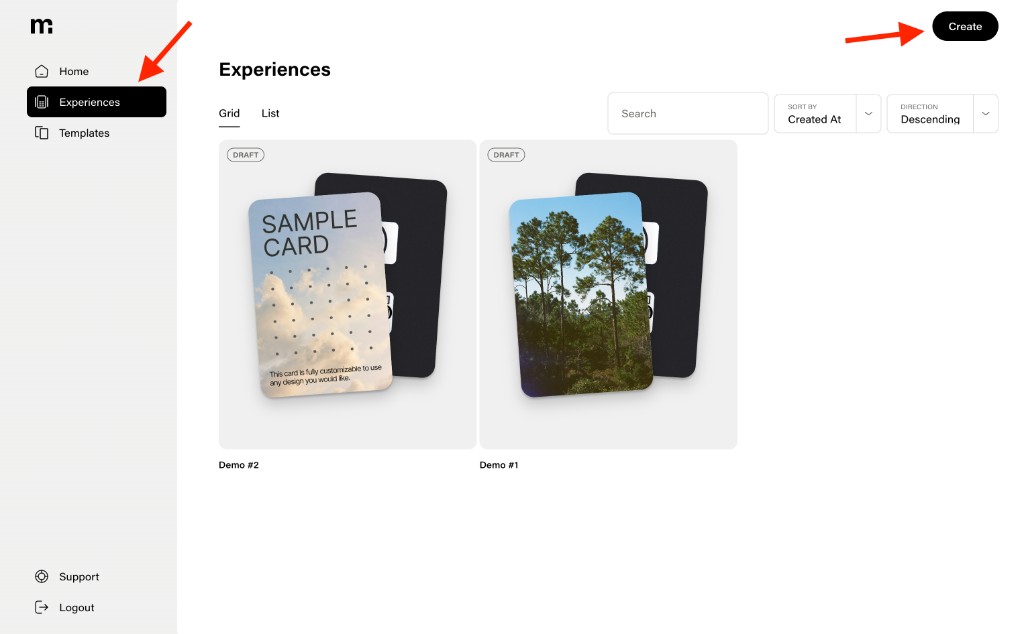
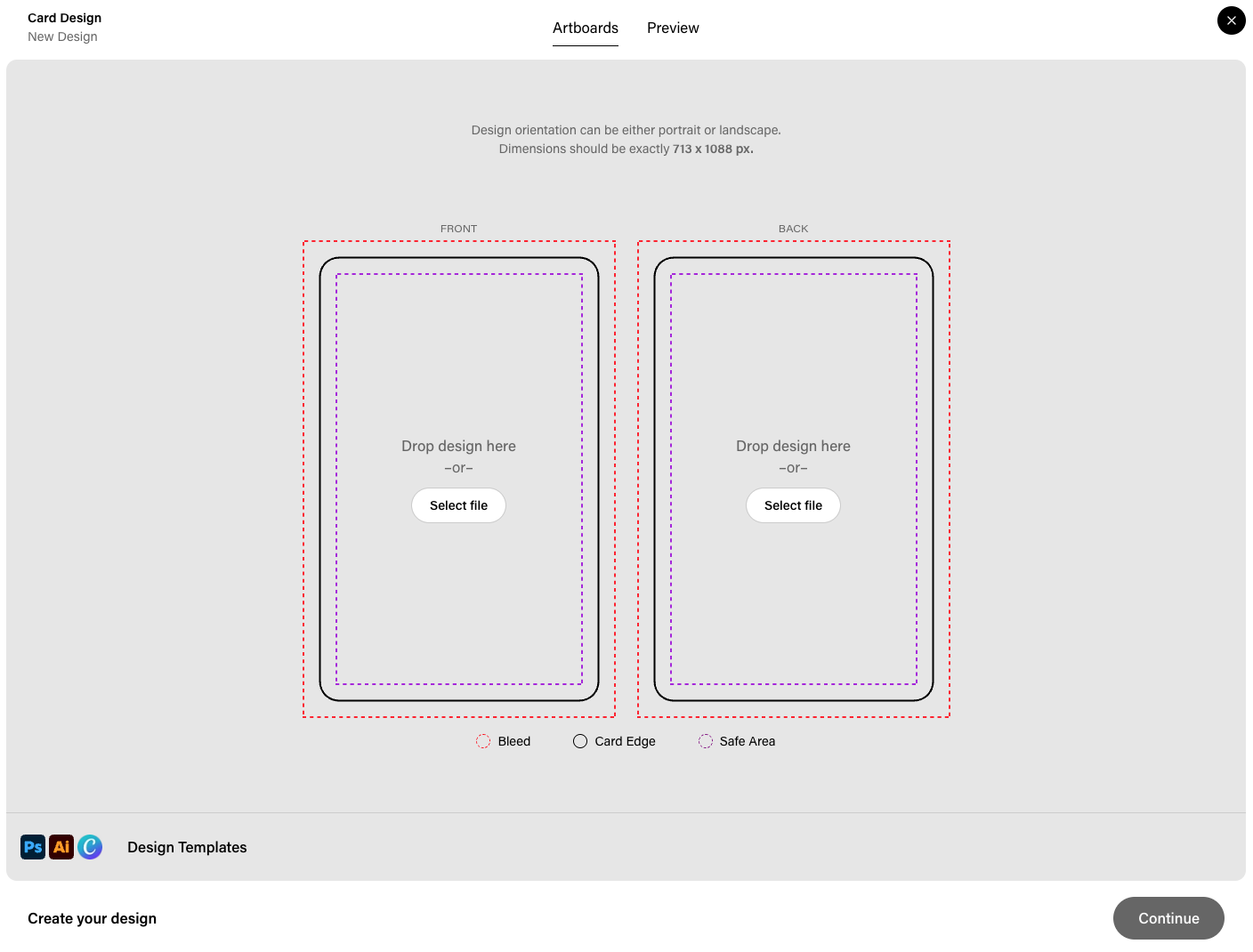
To create your mem-re card Experience:
- Upload the front design for your card. This is the primary visual that users see and scan.
- Portrait orientation: 718 x 1088 px
- Landscape orientation: 1088 x 718 px
- Upload the back design. This is typically used for the QR code, tap instructions, and additional artwork. Use the same dimensions as the front design, noted above.
- Note: Do not upload artwork with a QR code in the design. QRs are printed when your cards are fulfilled.
- Select a material.
- Give the card a name for internal reference. This name is used in the dashboard to identify the card.
- Note: The card name does not appear on the physical card itself or to end users experiencing the card in their hands.
- Preview the designs before finalizing.
- Ensure critical design elements are within the card edge and safe area
- If tweaks need to be made, you can drag your updated files to the Front and Back design areas.
- Click Continue, and the Experience is created automatically with the card designs attached.
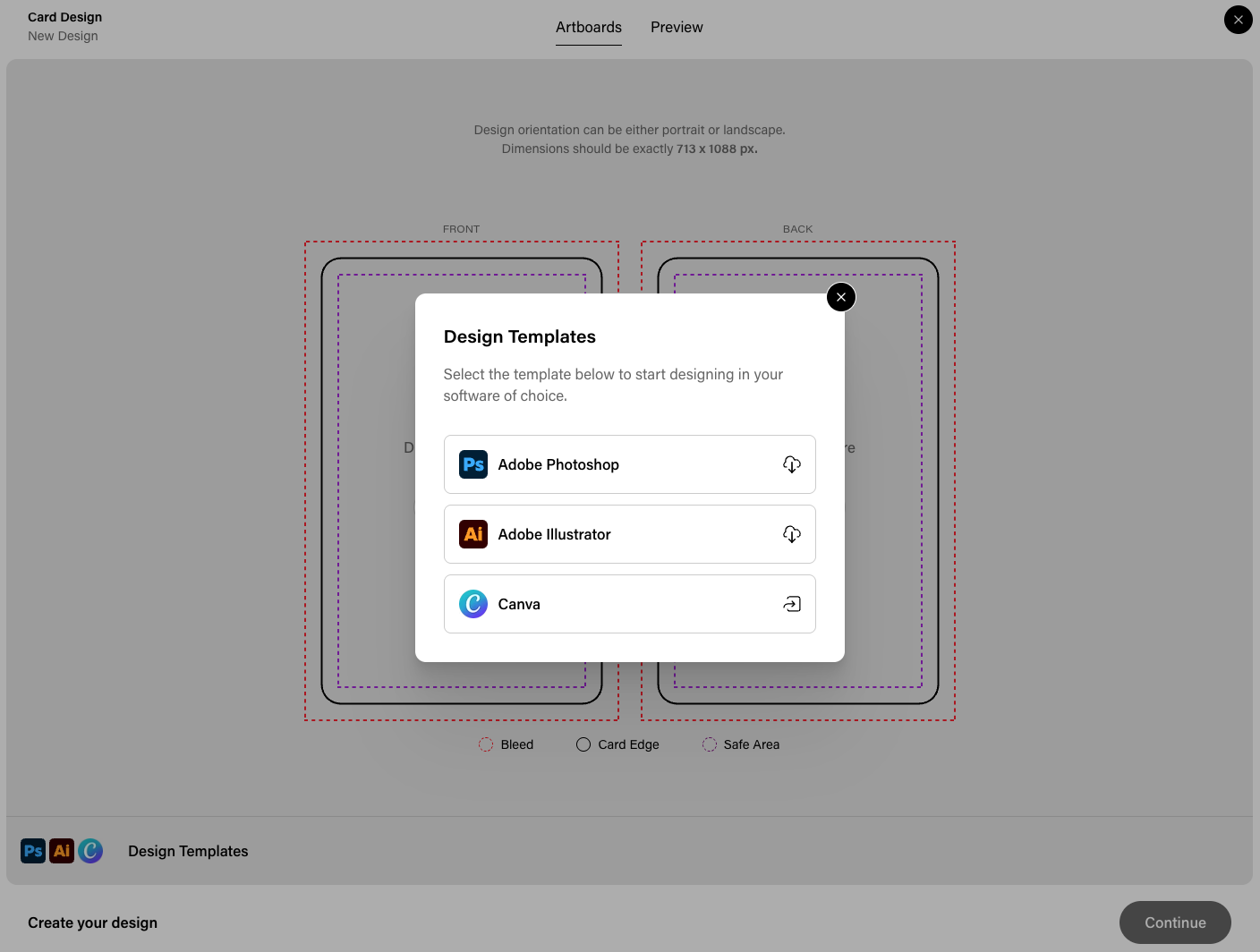
Design Templates
We provide Photoshop, Illustrator, and Canva templates to help you design your card artwork. Use the links in the Card Designer when creating your Experience to download the template that fits your workflow.
Designing a Card
You can access the card designer when creating a new Experience (via the Card Designer flow) or by editing an existing Experience's card.
Front Design
Upload the front design for your card. This is the primary visual that users see and scan.
- Portrait orientation: 718 x 1088 px
- Landscape orientation: 1088 x 718 px
Back Design
Upload the back design. This is typically used for branding, instructions, or additional artwork.
The same dimension guidelines apply as the front design.
Card Name
Give the card a name for internal reference. This name is used in the dashboard to identify the card and does not appear on the physical card itself.
Preview
After uploading your designs, you can preview the front and back designs to see how the card will look before finalizing. The preview shows the actual proportions and layout of the printed card.
Editing a Card
To update an existing card's design, navigate to the Experience overview and click Edit Design. You can re-upload the front or back artwork at any time.
TIP
Changing the design will affect the image required to scan to activate AR content. If you've already placed an order for your cards with a different design, use caution when updating the card design.
Next Steps
Once your card design is ready, you can submit an order request for physical cards to be delivered to you.